Keyboard Controls for The Skin Stapler
Action-first guidance for Carrion City—verify keys in your own session.
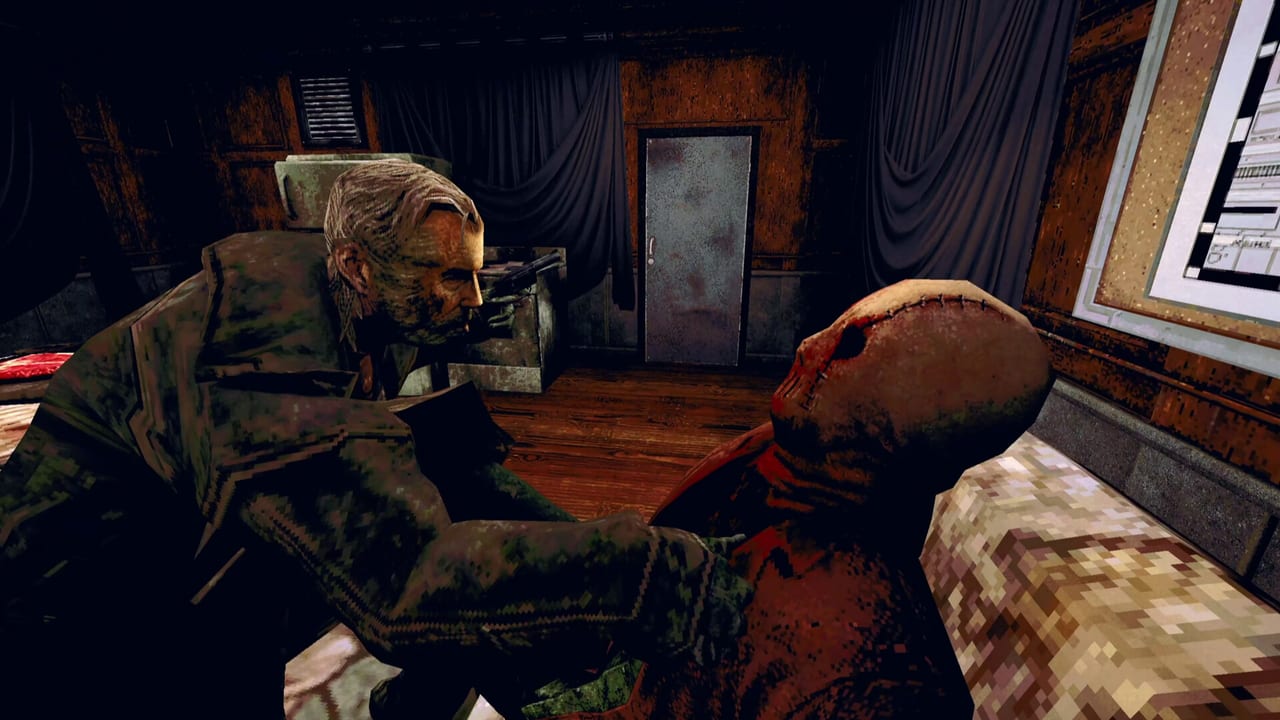
The Skin Stapler on Steam (App ID 4310610) plays like a first-person adventure wrapped in PSX grindhouse horror. You spend most of your time walking Carrion City interiors, reading case notes, and hitting contextual interact prompts while the VHS filter hides details at the edge of the screen. Tainted Pact and Assemble Entertainment market keyboard and mouse as the primary PC setup at the August 6, 2026 launch. This page explains what each action does and how to confirm which key your copy uses—without inventing a definitive chart that tomorrow’s patch could disprove.
Core movement and camera
Expect standard FPS-adventure locomotion: move forward, backward, and strafe; look with the mouse; optionally run or walk depending on story tension. Horror pacing often caps sprinting during investigation beats, so do not assume a permanent sprint toggle exists in every chapter. Dick Slater’s burned-out detective segments at CCPD reward slow pans across evidence boards. Hexy’s Quick Fix shift needs tight turns between aisles without overshooting customers. Blair’s Gutters End scenes punish snap turns when colored lane lights drop visibility.
Open the in-game Controls or Key Bindings menu on first launch and write down your move, look invert, and crouch or duck options if present. Steam Cloud can restore old bindings when you reinstall—compare against a fresh default if movement feels wrong after an update from the Updates Hub.
Interaction, examination, and inventory
Adventure horror lives on the Use / Interact action. When a reticle highlights an object, interact once to pick it up or start dialogue; many clues require a second press to rotate, flip, or read the back of a photo. If nothing happens, inch closer, adjust height, and try examining from another angle before opening a walkthrough.
Inventory is usually mouse-driven: open the pack, click items, combine or use on hotspots. Some shifts (store clerk, bowling alley employee) swap verbs—serving customers, fixing lanes, or tagging evidence—while keeping the same interact philosophy. Read on-screen prompts literally; the game is fully voiced in English only, but subtitles should match prompt text.
Menus, pause, and skipping
Pause should halt gameplay and open options for graphics, audio, and controls. If pause fails during a scripted chase, that may be intentional—note the chapter and report it on Steam rather than assuming your keyboard failed. Dialogue may allow skip or advance actions; verify which key advances lines without accidentally skipping evidence prompts.
Return to the Controls Hub for hub-level context, and pair this page with settings tips for sensitivity, subtitles, and Steam Input checks.
What we deliberately do not list
We do not publish a full WASD chart with fixed labels for every action. Players ask in forums for controller support; others remap through Steam Input. A wiki table of “E to interact” becomes wrong the moment a patch rebinds defaults or a player uses a community layout. Instead, use this checklist each session:
- Launch the game → open Settings → Controls.
- Confirm Move, Interact, Inventory, Pause, and Flashlight or tool if shown.
- Test each in a safe room before entering Carrion City streets.
- If using a gamepad, open Steam’s controller config for App 4310610 and confirm glyphs match what you see on screen.
Controller curiosity and Steam Input
Native controller support is a common community request. Until official patch notes say otherwise, treat pad play as Steam Input emulation: the game may still display keyboard icons. Map interact and pause first, then movement. If prompts never change, keep a personal remap note beside the achievement checklist so muscle memory stays consistent across nights.
Chapter-specific control habits
| Chapter mood | Control habit |
|---|---|
| Police desk and crime tape | Slow mouse, double-check examine prompts on bodies and files |
| Convenience night shift | Short strafes, listen for customer cues before sprinting |
| Bowling alley | Lower sensitivity if lane lights flicker; interact with machinery only when prompts appear |
When controls feel broken
Verify you are on the latest build, disable conflicting overlay software temporarily, and reset bindings to default once. If only one chapter misbehaves, save and reload—adventure games occasionally soft-lock interact volumes. For performance-related input lag, see system requirements and lower post-processing before blaming hardware.
Related pages
- Settings and accessibility — sensitivity, subtitles, brightness, Steam Cloud habits.
- Characters Hub — who you control in perspective swaps.
- Collectibles Hub — optional audio tapes and evidence often need precise interact timing.
Frequently Asked Questions
Quick answers for Carrion City survivors.
Where can I see the official key bindings?
Inside the game’s settings menu on PC. This wiki describes actions so you can match them to your copy without relying on an outdated table.
Can I play The Skin Stapler with a controller?
Many players use Steam Input to emulate keyboard. Verify interact and pause in-game; prompts may still show PC keys until the developer adds native layouts.
Why does interact fail on some objects?
Move closer, adjust camera height, and interact again. Adventure hotspots often need a specific angle; see keyboard controls habits for examine loops.
Do bindings differ between demo and full game?
They should match for early sections like CCPD. Reopen the controls menu after upgrading from the demo to the full Steam purchase.